Shala Darpan Registration Process: Step-by-Step [For Teachers]

Rajasthan’s education system transformed with Shala Darpan. This digital portal connects schools, parents, and administrators in real time. Getting registered unlocks vital tools for teachers and staff. This guide walks you through every step without errors. Follow it precisely to gain immediate access.
Dear respected teachers, This is a simple and basic Shala Darpan Registration guide for you which you can follow to make your own stuff long info on shala darpan portal. Also make sure you have all needed details and id before you procced registration, to know more please read below.
What is the Integrated Shala Darpan Portal?
The Integrated Shala Darpan Portal is Rajasthan’s central education hub. It launched to replace paper records and manual processes. Teachers update attendance here, Parents check student performance instantly. Administrators monitor scholarship schemes like NMMS, Everyone sees the same real-time data. This eliminates confusion and delays across the system. Transparency improves when information flows freely.
Key Features and Benefits for Users
Teachers save hours on administrative tasks, Parents avoid school visits for basic updates. Schools reduce paperwork costs significantly. Data accuracy improves across all levels. Rajasthan’s education department makes better decisions with clear insights.
Eligibility Criteria for Shala Darpan Registration
Only authorized personnel can register, Government school teachers qualify first. Private school teachers need state approval. Principals and vice-principals gain full access. Administrative staff like clerks may register, All must possess an official Staff NIC-SD ID. This unique identifier comes from the education department. Temporary or contract staff typically don’t qualify, to know more why please contact with your block education officer if unsure.
Documents & Information Needed
Gather these before starting registration:
- Your Staff NIC-SD ID (exactly as issued) Know Your Details.
- Active mobile number registered with the department
- Official date of birth from service records
- Full name matching government documents
- Stable internet connection
- Device with updated browser
Double-check your mobile number first, The OTP verification fails with wrong digits. Your name and birthdate must mirror official files. Mismatches cause immediate rejection. Save time by preparing everything upfront.
Step-by-Step Shala Darpan Registration Process
Follow these steps in exact order, Skipping any part causes registration failure. Move to the next only when each action completes successfully. Rushing creates errors that take days to fix.
Step 1: Accessing the Official Portal
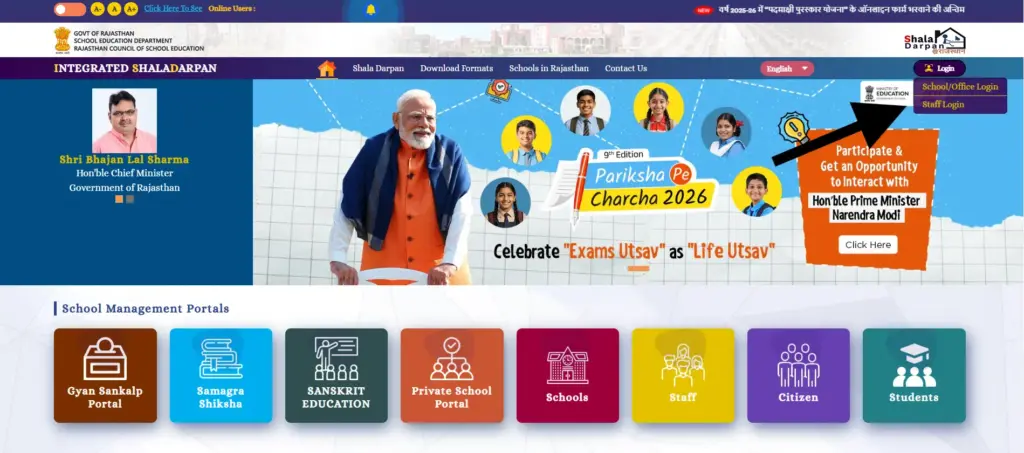
Open your browser and go to rajshaladarpan.rajasthan.gov.in. This is the only valid website. Fake portals steal login details so make sure you have visited the original site. Look for the Staff Window section on the homepage. Click it to reveal the login area. Avoid third-party links promising faster access. Government sites use .gov.in domains always.
Step 2: Initiating the ‘Register for Staff Login’ Process
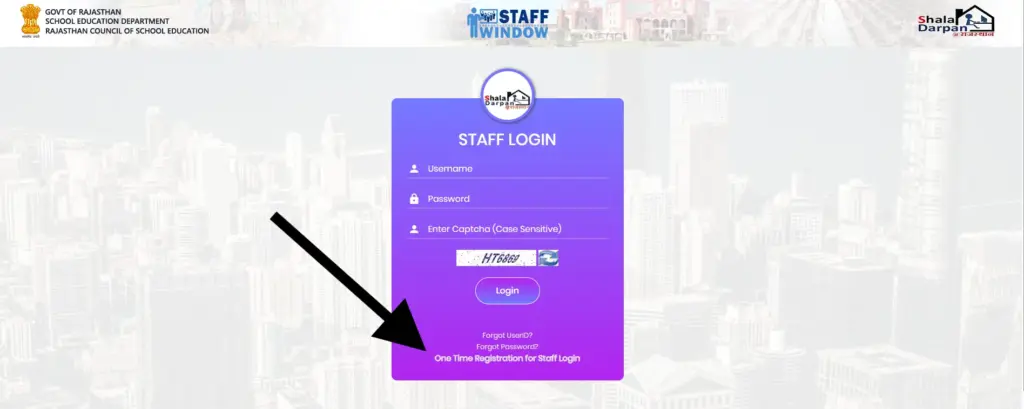
Find the Register for Staff Login button. It appears below the username field usually. Clicking opens the registration form. The page shows blank fields ready for your details. Ignore any pop-ups asking for payment. Registration is completely free. Contact your district office if the button is missing.
Step 3: Filling the Registration Form Accurately
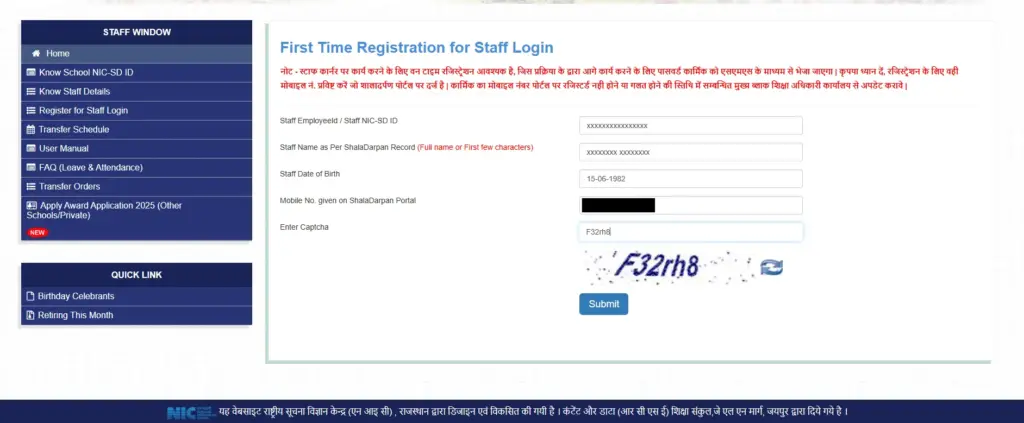
Enter your Staff NIC-SD ID first. Type it carefully without spaces. Use your full official name next. Include middle names if recorded. Select your date of birth from the calendar tool. Input your registered mobile number. Complete the captcha code exactly as shown. Triple-check every entry before submitting. One wrong digit invalidates the entire process.
Step 4: Mobile Verification via OTP
Expect an SMS within two minutes, The message contains a six-digit OTP. Enter this code in the portal’s verification box. Click submit immediately. OTPs expire quickly for security. Request a new code if it doesn’t arrive.
Note: Use the Resend OTP option sparingly. Multiple attempts may temporarily lock your account.
Step 5: Receiving and Securing Login Credentials
The system generates a username and password instantly. Write them down immediately. Screenshots work but handwritten notes are safer. Change your password during first login. Create something strong and memorable. Never share credentials with colleagues. Report compromised accounts to the portal helpline.
What to Do After Successful Registration
Log in immediately using your new credentials. The system forces a password reset first. Create a unique combination you haven’t used elsewhere. Visit your profile section next. Verify all personal details match official records. Update incorrect entries through the edit function. Explore dashboard features slowly to avoid mistakes.
Navigating the Staff Dashboard
The dashboard displays several key sections. My Profile holds your service details. Student Reports show class performance metrics. Attendance tracks daily pupil presence. Applications handle administrative requests. Icons use simple education-related symbols. Hover over them for function descriptions. Start with basic tasks before advanced features.
Troubleshooting Common Registration Issues
Most problems have simple solutions. First refresh your browser completely. Clear cache and cookies if issues persist. Ensure your internet connection stays stable. Try registration during off-peak hours. Contact support only after these steps.
“Invalid Staff NIC-SD ID” Error
Recheck your ID against official documents. Look for missing letters or numbers. Contact your school administration if it still fails. They verify your ID status with block officers. Never attempt registration with expired IDs. Renewals happen through education department channels.
OTP Not Received on Mobile
Check your phone’s signal strength first. Ensure no call-blocking apps are active. Verify the mobile number entered matches records. Wait five minutes before requesting resends. Try from a different device if possible. Visit a common service center as last resort.
Forgotten Login Credentials
Click Forgot Password on the login page. Enter your registered mobile number. Follow the reset instructions sent via SMS. Username recovery requires department verification. Submit a written request through your principal. Keep backup credentials in a secure place.
Last Words
Shala Darpan revolutionizes Rajasthan’s schools. Parents see their child’s progress instantly. Teachers spend less time on paperwork. Administrators allocate resources fairly. Data-driven decisions replace guesswork. Student outcomes improve with consistent monitoring. Registering unlocks these benefits immediately. Your participation strengthens the entire system.